Keyword: authenticated page screenshot API · Updated August 27, 2026
Authenticated Page Screenshot API: Capture Dashboards with Cookies and Headers
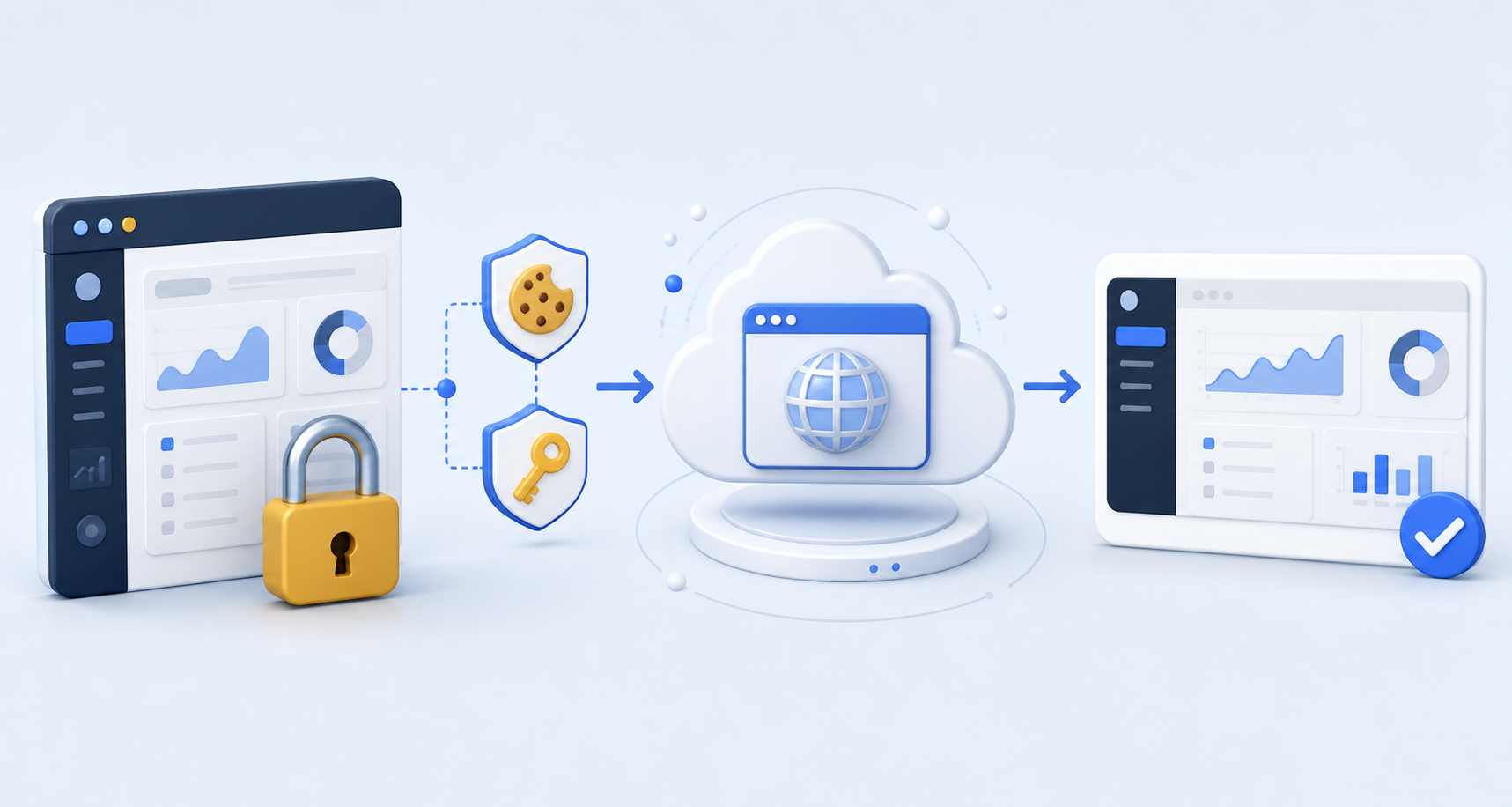
The useful page often sits behind a login: an analytics dashboard, staging build, customer portal, billing report, or internal admin screen. You can capture that page without replaying the login form on every run. Give the remote browser a scoped session cookie or authorization header, wait for a protected element, and return a screenshot for reporting, QA, or review.
Why authenticated capture matters now
Browser automation vendors are investing in reusable authenticated state. Browserless introduced reusable authenticated profiles in May 2026 for dashboards, customer portals, QA roles, and AI agents. ScreenshotOne also publishes dedicated guidance for protected-page capture with cookies and headers. The common use case is clear: teams want repeatable access to a known application state without maintaining a fragile login script for every screenshot job.
SnapshotFlow supports the focused version of this workflow today. Its /screenshotheaders and cookies. The Node SDK exposes the same options as typed objects. This works well when one page load and an optional click reach the state you need.
Choose cookies or headers
| Target authentication | SnapshotFlow option | Best practice |
|---|---|---|
| Session cookie | cookies | Use a dedicated automation account and copy the cookie domain, path, and security attributes. |
| Bearer token | headers | Send Authorization: Bearer ... from server-side code. |
| Preview bypass token | headers or cookies | Scope the token to the preview hostname and give it a short expiration. |
| Several login pages or MFA | Stateful browser workflow | Complete login elsewhere, then pass a resulting scoped cookie when policy permits. |
Cookie attributes still apply. The cookie domain and path must match the target URL. A Secure cookie needs HTTPS, and SameSite rules can affect cross-site login flows. SnapshotFlow adds the supplied cookies to the browser context before navigation, so you do not need client-side JavaScript to read an HttpOnly cookie.
Capture a protected dashboard with cURL
The API expects cookies and headers as JSON strings. Keep both secrets in environment variables and let --data-urlencode escape the JSON.
The wait selector does more than reduce timing errors. It verifies that the protected report appeared. If the cookie expired and the site redirects to login, SnapshotFlow returns SELECTOR_NOT_FOUND instead of quietly saving the login page as a successful report.
Use an authorization header instead
Add authenticated capture to a Node.js job
The official Node SDK serializes the header object and cookie array for the API. Keep this code in a worker, server route, or scheduled job. Never send the SnapshotFlow API key or target session token to browser JavaScript.
For role-based UI checks, run the same function with separate read-only accounts such as viewer and billing-admin. Store the role label with the screenshot. Do not store or print the cookie value.
Security checklist for screenshot credentials
- Create a dedicated automation identity. Give it access only to the pages and records the capture job needs.
- Prefer short-lived sessions. Expiring credentials reduce the impact of accidental exposure.
- Store secrets server-side. Use your deployment platform's secret store or a managed secrets service.
- Redact logs and errors. OWASP recommends excluding session identifiers, access tokens, and encryption keys from logs.
- Disable capture caching for sensitive pages. Set
cache=false. Decide how long your application should retain the returned image. - Check the target hostname. Never let an untrusted user choose both the destination URL and the credentials sent to it.
- Rotate after exposure. Treat a pasted cookie, terminal recording, CI log, or public issue comment as compromised.
Know when a one-shot Screenshot API is too small
Cookies and headers cover direct navigation to an authenticated page. They do not reproduce every browser profile. Applications may keep state in localStorage, IndexedDB, device-bound credentials, or a live browser session. Some logins require several redirects, MFA, or a CAPTCHA.
Use Playwright authentication state or a managed persistent-browser profile for those workflows. Once that system produces a scoped cookie or a stable authenticated URL, SnapshotFlow can handle the repeatable evidence capture. This keeps a scheduled reporting job smaller than a full browser automation suite.
For a short answer about public and private-network targets, read the authenticated pages FAQ. For public pages, use the Screenshot API quick start. For several pages, use the batch screenshot guide. For private preview verification by coding agents, read the best screenshot API for AI agents FAQ.
FAQ
Can SnapshotFlow log in with a username and password?
SnapshotFlow can send headers, cookies, scripts, and a configured click, but it is not a general multi-step login recorder. Create the session through your application's test setup or a stateful browser tool, then pass a scoped cookie to the capture job.
Can I capture a private-network dashboard?
The hosted API blocks localhost and private-network targets for SSRF protection. Deploy an access-controlled preview that the hosted service can reach, or run the SnapshotFlow backend inside your network.
Why did the API capture the login page?
Check the cookie domain, path, expiration, Secure flag, and target URL. Add a wait_for_selector that exists only on the protected page so an expired session becomes a clear error.
Sources and further reading
- Browserless: Authenticated Profiles, published May 26, 2026.
- ScreenshotOne: Screenshot authenticated pages.
- Playwright authentication documentation for reusable browser state.
- MDN: Set-Cookie header for domain, path, Secure, HttpOnly, and SameSite behavior.
- OWASP Secrets Management Cheat Sheet.
- OWASP Logging Cheat Sheet for sensitive-data redaction.
Start with one read-only report
Create one short-lived automation session, capture one protected report with cache=false, and verify a selector that appears only after login. Once that works, add scheduling, retention, and role-specific captures.