Keyword: LangChain screenshot tool · Updated October 12, 2026
LangChain Screenshot Tool: Let Your Agent See Rendered Pages
A LangChain agent that can only fetch HTML misses most of what a person sees: client-rendered content, a cookie wall covering the hero, a price that is in the DOM but hidden on mobile, a chart drawn on a canvas. This guide builds a LangChain screenshot tool in Python that captures the rendered page through SnapshotFlow, hands the image to a vision model, and pairs it with a cheaper text tool so the agent only pays for pixels when pixels matter.
What is a LangChain screenshot tool?
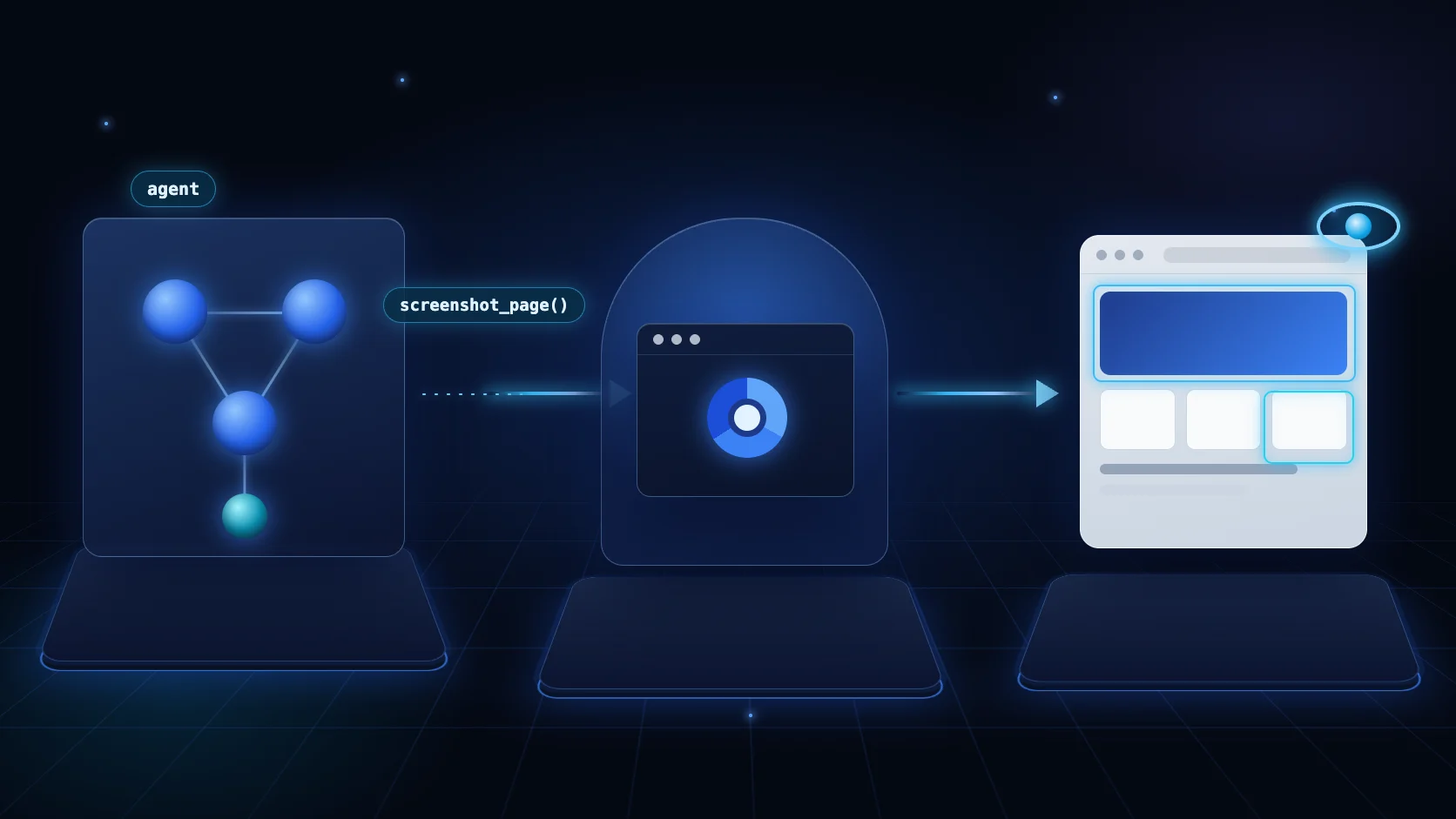
@tool that takes a URL, renders it in a real browser, and returns the result as an image content block. The agent decides when to call it. With a screenshot API behind the function, your agent process never starts Chromium; it makes one HTTPS request.You could run Playwright inside the agent worker instead. That works on a laptop and gets expensive in production: every worker needs a browser binary, fonts, memory headroom and a plan for zombie processes. Our Playwright alternative comparison covers that trade-off in detail. Here we keep the agent lightweight and let SnapshotFlow handle rendering, cookie banners, ads and timeouts.
This guide is about wiring the tool into LangChain and LangGraph. If you want to catch UI regressions in CI, read visual regression testing with a screenshot API. If you need a non-agent pipeline that sends screenshots to Claude or GPT, see the AI vision pipeline guide.
When should an agent take a screenshot instead of reading text?
Give the agent two tools and a clear policy: read first, capture only when the answer depends on what the page looks like. The model follows this reliably when the tool docstrings say it plainly.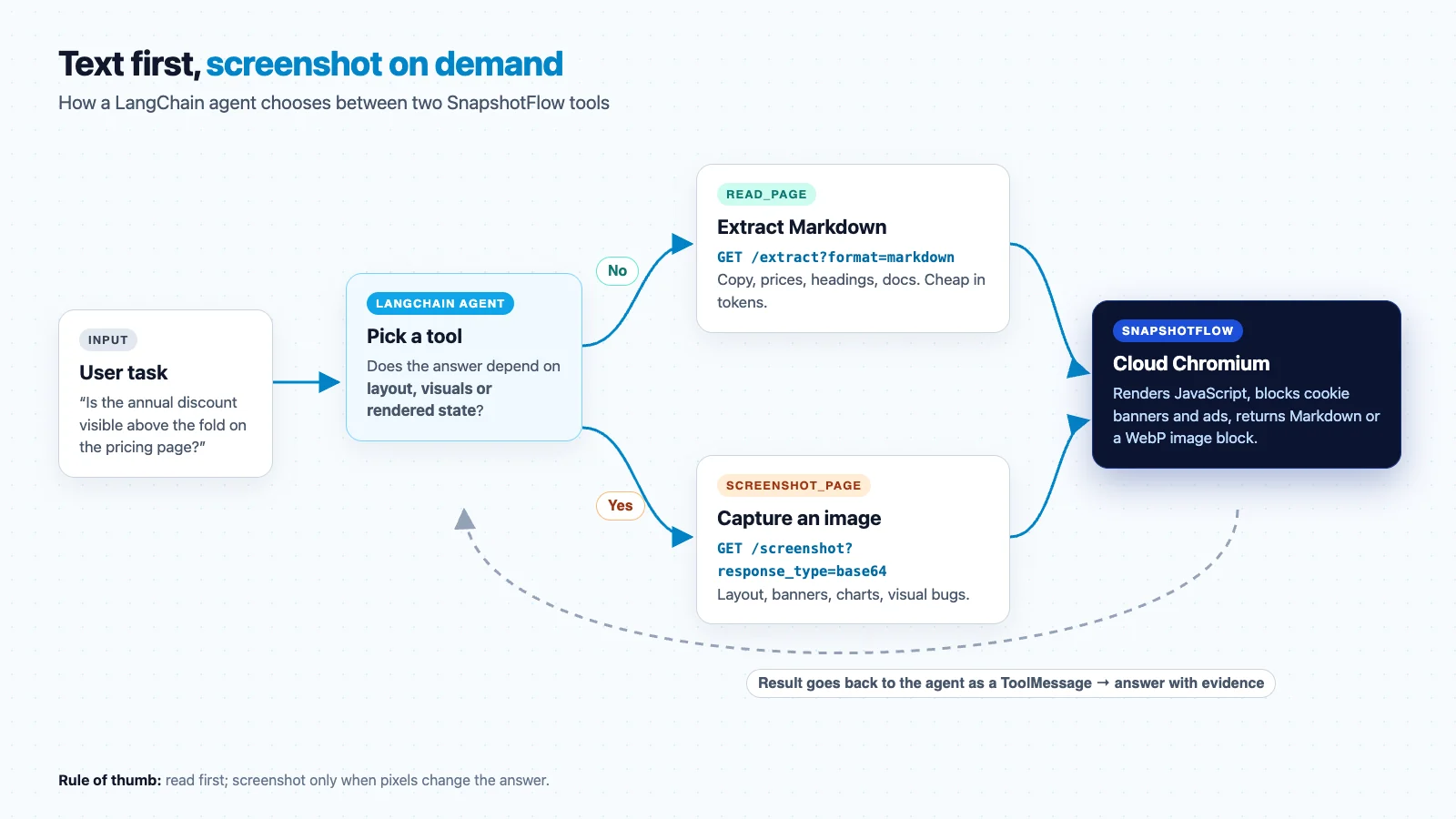
| Agent question | Tool | Why |
|---|---|---|
| What does the Pro plan cost? | read_page | The price is text. Markdown is smaller and quotes exactly. |
| Summarize this changelog or docs page | read_page | Long-form content; layout adds nothing. |
| Is the signup button visible above the fold on mobile? | screenshot_page | Depends on viewport, CSS and overlays, not on the DOM. |
| Does the dashboard chart show a drop last week? | screenshot_page | Canvas and SVG charts rarely expose values as text. |
| Does the page look broken? | screenshot_page | Overlaps, missing images and layout shifts only show in pixels. |
| Which competitor highlights a free trial in the hero? | both | Read to find the claim, capture to confirm prominence. |
How many tokens does a screenshot cost an agent?
Anthropic's vision documentation gives a rule of thumb: an image costs about width × height / 750 tokens, and images with a long edge above 1,568 px are scaled down before the model sees them. That leads to three practical numbers for agent screenshots:
| Capture | Size | ≈ Tokens | Readability |
|---|---|---|---|
| Mobile viewport | 390 × 844 | ~440 | Good; text stays legible |
| Desktop viewport | 1280 × 800 | ~1,370 | Good default |
| Full page | 1280 × 6000 | ~700 (downscaled to about 335 × 1568) | Poor; the page shrinks to a narrow strip and body text becomes unreadable |
The last row is the trap. A full-page capture of a long landing page does not give the model more detail. The image is scaled down until its long edge fits, so a 6,000 px page ends up about 335 px wide and the model sees a thumbnail. For agents, prefer a viewport capture, or capture one component with the selector parameter (see the element screenshot guide). Use full_page when the question is about overall structure.
Text is usually cheaper for text questions. A common estimate is roughly four characters per token for English, so a max_chars=20000 cap on extraction keeps a page near 5,000 tokens. The extract endpoint changelog explains why we added a text path for agents in the first place.
1. Install packages and keep the key server-side
The examples use LangChain 1.x with create_agent, which runs on LangGraph. Anthropic is used as the model provider because Claude accepts images inside tool results; adapt the model string for your provider.
2. Write two capture helpers
Keep the HTTP calls in plain functions. The LangChain tools and any LangGraph nodes can then share them, and you can unit-test them without an agent.
Three choices matter here. response_type=base64 returns JSON with a data URL, which is exactly what a model content block needs. WebP at quality 70 keeps payloads well below PNG size for the same viewport. block_cookie_banners stops the agent from describing a consent dialog instead of the page; the cookie banner guide covers edge cases.
3. Wrap the helpers as LangChain tools
The docstring is the routing policy. The model reads it every time it decides which tool to call, so say when to use the tool, not only what it does. Errors are returned as text instead of raised, which lets the agent retry with different arguments or explain the failure.
Returning a list of content blocks puts the image inside the ToolMessage, so the model sees it on its next turn. Claude supports images in tool results. If your provider rejects them, return only the text block from the tool and append the image to the conversation as a new user message in a small middleware step.
4. Create the agent with a text-first policy
For this question a well-behaved run makes two tool calls: read_page to confirm the discount exists, then screenshot_page(mobile=True) to check whether it sits above the fold. The final answer quotes the visible text, which gives you something to check against the screenshot in your traces.
The "3 screenshots" rule in the prompt is a soft limit. For a hard one, LangChain 1.x offers agent middleware for tool-call limits, or you can count calls inside the tool and return a refusal string after the budget is used.
5. Use a LangGraph node for fixed checks
Not every workflow needs an agent loop. If you run the same visual check on a schedule, for example "is the promo banner live on these five pages", a fixed graph is cheaper and easier to test: capture, inspect, store a structured verdict.
To run this across many pages, schedule it from your job runner, or switch the capture node to SnapshotFlow's async mode with webhooks so slow pages do not hold a worker. For pixel-level change tracking without a model in the loop, visual change detection is the cheaper tool.
Safety and limits for browsing agents
- Treat pages as untrusted input. A page can contain text like "ignore your instructions", in the DOM or drawn into an image. OWASP lists prompt injection as the top LLM application risk. Keep browsing agents read-only: do not give the same agent tools that send email, write to databases or spend money.
- Constrain URLs. SnapshotFlow rejects private and loopback addresses, which blocks the classic SSRF path into your network. Add your own allow-list when the agent should only visit known domains.
- Bound cost. Every screenshot and extraction is one API request against your plan. Cap screenshots per task, keep
cacheon for repeated URLs, and log tool calls so you can see which prompts trigger captures. - Handle slow pages. Use
wait_for_selectorwhen a dashboard has a known ready marker. A fixed delay either wastes time or fires too early. - Authenticated pages need care. SnapshotFlow accepts
cookiesandheaders. Inject them in the helper from your own config, scoped to a least-privileged account, and never expose them as tool arguments. See the authenticated capture guide.
Direct tool or MCP server?
SnapshotFlow also ships an MCP server. Both routes call the same rendering service; the difference is who owns the tool definition.
| You need | Use | Reason |
|---|---|---|
| Custom docstrings, defaults, budgets and error text | Direct @tool | You control the routing policy and every parameter. |
| The same tools in Claude Desktop, Cursor and your agent | MCP | One server definition, many clients. |
| Tools inside the browser tab via WebMCP | WebMCP | Different standard; see WebMCP explained. |
FAQ
Can a LangChain agent take screenshots without running a browser?
Yes. Wrap a screenshot API in a LangChain tool. SnapshotFlow renders the page in managed Chromium and returns the image, so your agent process only makes an HTTPS request.
Should an agent use a screenshot or page text?
Text for wording, prices, headings and docs. A screenshot when the answer depends on layout, visual state, charts, banners or what appears above the fold. Reading first and capturing on demand keeps token use down.
Do I need MCP to give LangChain a screenshot tool?
No. A plain @tool function calling the REST API is enough for a Python agent you control. MCP helps when several clients must share the same tools.
How do I screenshot pages that require login?
Pass cookies or headers on the screenshot request from your helper code, using a dedicated least-privileged session. Never let the model choose credentials.
SnapshotFlow instructions: add the tool in five steps
- Create a SnapshotFlow account and copy an API key from the dashboard.
- Set
SNAPSHOTFLOW_API_KEYin the environment where your agent runs. - Copy
snapshotflow_client.pyandsnapshotflow_tools.pyfrom this guide. - Pass
read_pageandscreenshot_pagetocreate_agentwith the text-first system prompt, or callcapture_webpfrom a LangGraph node. - Test parameters in the playground first, and check the full parameter list in the API reference.
Sources and further reading
Give your agent eyes without running a browser
Two tools, one API key, and a policy that reads first and captures only when the pixels change the answer.
Get an API key