For AI agents · Model Context Protocol
SnapshotFlow MCP Server
Give your AI agent a screenshot tool it can call directly. The SnapshotFlow MCP server exposes SnapshotFlow's rendering engine over the Model Context Protocol, so agents like Claude and Cursor can capture, batch, and compare web pages without scraping HTML or scripting a browser.
Connect your agent
The recommended remote MCP endpoint is served directly by the SnapshotFlow backend:
https://api.snapshotflow.com/mcp
Add it to your client's MCP configuration — for example claude_desktop_config.json or Cursor MCP settings:
{
  "mcpServers": {
    "snapshotflow": {
      "url": "https://api.snapshotflow.com/mcp"
    }
  }
}
The endpoint is protected by OAuth 2.0. On first connect, your MCP client opens a browser to sign in and is issued a short-lived Bearer token automatically — no API key header to manage. Requests without a valid token return 401 missing_token.
A local stdio wrapper is also available for development. Full setup instructions live in the MCP section of the API docs.
How to connect Claude to SnapshotFlow MCP
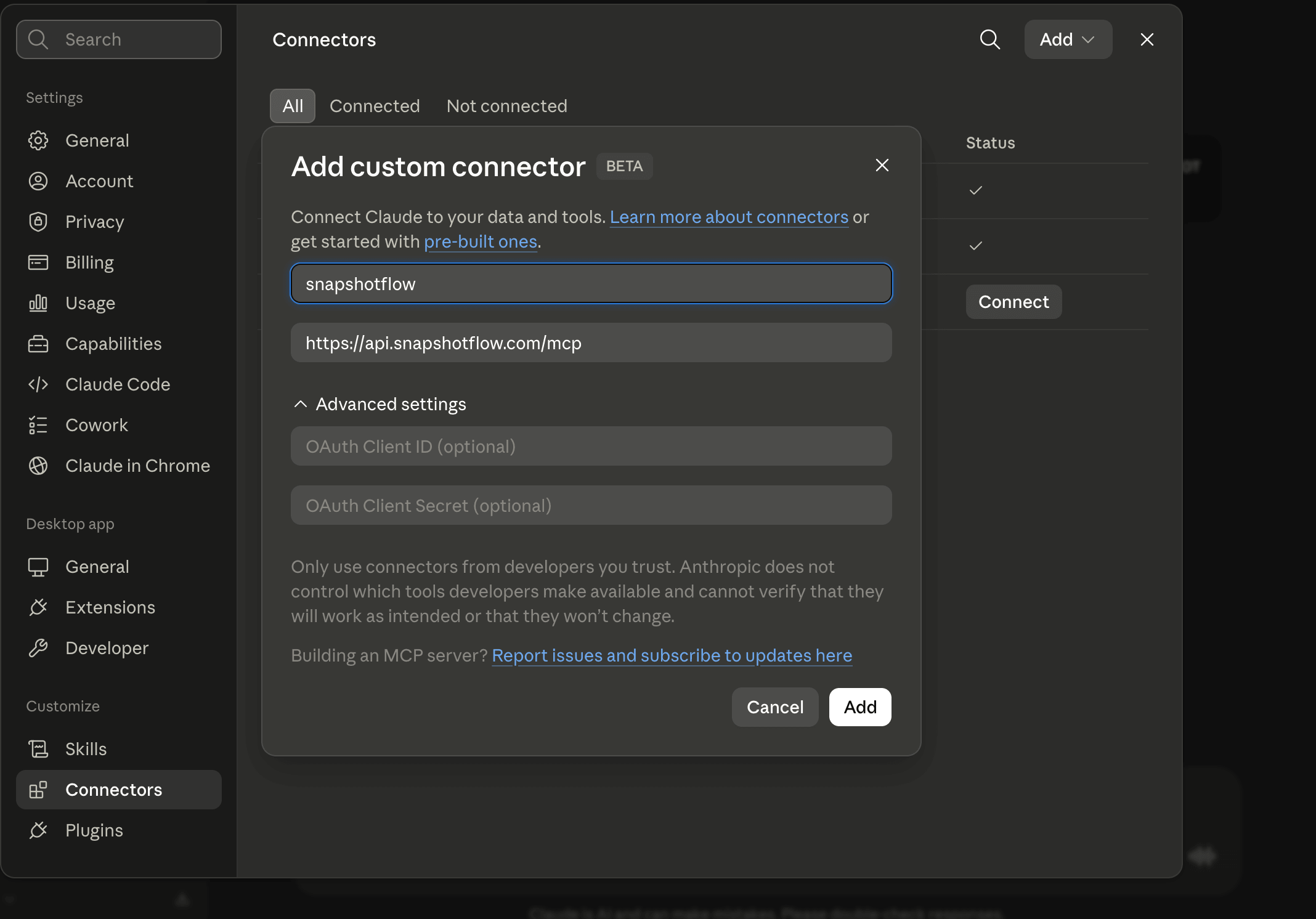
Add SnapshotFlow as a custom remote connector in Claude, then use it in conversations where you need visual or text evidence from a live web page.
- Open Settings in Claude and choose Connectors.
- Select Add custom connector.
- Enter
snapshotflowas the name and pastehttps://api.snapshotflow.com/mcpas the URL. - Select Add, then complete the SnapshotFlow sign-in in your browser when Claude asks you to authorize the connection.
Copy a prompt for Claude
After the connector is enabled, paste any of these prompts into a Claude chat:
Capture a page: “Take a full-page screenshot of https://example.com and describe the main layout issues.”
Review several pages: “Capture these URLs and make a short visual consistency report: https://example.com, https://example.com/pricing, and https://example.com/docs.”
Compare releases: “Compare https://staging.example.com with https://example.com and show any visual differences.”
Read a page efficiently: “Extract the readable text from https://example.com/blog and summarize the three newest posts.”
Follow an async capture: “Check the status of my SnapshotFlow screenshot job and return the result when it is complete.”
Connect SnapshotFlow to Cursor
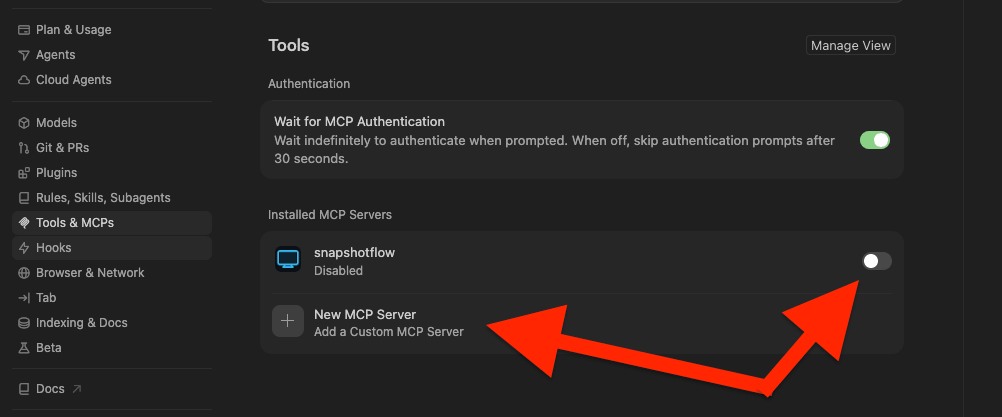
Cursor supports remote MCP servers over Streamable HTTP. Add SnapshotFlow once to use screenshots, visual diffs, and content extraction while you work on a project.
- Open Cursor Settings and choose Tools & MCPs.
- Select New MCP Server, then add a remote server named
snapshotflow. - Enter
https://api.snapshotflow.com/mcp, enable the server, and complete the browser sign-in when Cursor requests OAuth authorization.
Tell Cursor in chat
Open Cursor chat and paste this prompt. Review the generated configuration before accepting it:
Add the SnapshotFlow MCP server to this Cursor project. Create or update .cursor/mcp.json with this remote server configuration:

{
  "mcpServers": {
    "snapshotflow": {
      "url": "https://api.snapshotflow.com/mcp"
    }
  }
}

Afterward, tell me how to authenticate and enable it in Cursor.
For a server available across all your projects, add the same configuration to ~/.cursor/mcp.json instead.
Use SnapshotFlow with GitHub Copilot
In VS Code, add SnapshotFlow as a remote MCP server in .vscode/mcp.json, start it, and complete the OAuth sign-in when Copilot prompts you:
{
  "servers": {
    "snapshotflow": {
      "url": "https://api.snapshotflow.com/mcp"
    }
  }
}
Copy a prompt for Copilot
Use SnapshotFlow to capture a full-page screenshot of http://localhost:4321. Compare it with the intended layout in this project and list the visual regressions to fix.Use SnapshotFlow with Antigravity
Antigravity Agent accepts remote MCP tools over Streamable HTTP. Register SnapshotFlow as an mcp_server with this configuration:
{
  "type": "mcp_server",
  "name": "snapshotflow",
  "url": "https://api.snapshotflow.com/mcp"
}
Complete SnapshotFlow OAuth when the client requests authorization.
Copy a prompt for Antigravity
Use the SnapshotFlow MCP server to capture https://example.com/pricing. Extract the visible pricing plans, then report any broken layout, missing images, or unreadable text.Use SnapshotFlow with Codex and ChatGPT
Connect SnapshotFlow to Codex
Codex uses a remote MCP server configuration rather than the Claude-style JSON snippet. Add SnapshotFlow from your terminal:
codex mcp add snapshotflow --url https://api.snapshotflow.com/mcp
codex mcp login snapshotflow
The login command opens your browser so you can authorize SnapshotFlow. Start a new Codex task after the connection is complete, then ask it to capture, compare, or extract content from a web page.
To confirm the saved configuration, run codex mcp get snapshotflow.
Copy a prompt for Codex
Use the SnapshotFlow MCP server to take a full-page screenshot of https://example.com. Then list the three most important visual issues you find.Connect SnapshotFlow to ChatGPT
ChatGPT uses Apps rather than a pasted JSON configuration. In a Business, Enterprise, or Edu workspace, an admin or authorized developer can enable Developer Mode, add this remote MCP app, and publish it for the workspace:
https://api.snapshotflow.com/mcpWhen the app is enabled for your workspace, connect it from ChatGPT’s Apps settings and complete the SnapshotFlow sign-in flow. Availability depends on your plan, workspace settings, and role.
Copy a prompt for ChatGPT
Use the SnapshotFlow app to compare https://staging.example.com with https://example.com. Show the visual differences and summarize what changed.Available MCP tools
Every tool and its full input schema is described in the MCP server card.
screenshot— capture a URL or base64 HTML as PNG/JPEG/WebP. Supports full-page capture, dark mode, selector waits, ad & cookie-banner blocking, content extraction, and metadata.batch_screenshot— capture 1–10 URLs in one parallel request to compare, audit, or survey multiple pages.visual_diff— pixel-compare two URLs and return a highlighted diff image plus change statistics.extract_text— fetch a URL and return its content as Markdown, plain text, or raw HTML — no screenshot, far cheaper in LLM tokens when you only need text.check_job— check the status of an async screenshot job and retrieve its result.
What agents use it for
AI agents working on web tasks frequently need to see a rendered page rather than guess from raw HTML. With the MCP server connected, an agent can capture a live page during a coding task, diff a deploy against its baseline for visual regressions, batch-survey a list of URLs, and pull clean page content or metadata — all as native tool calls.
Machine-readable discovery
The MCP server card lets agents and registries discover SnapshotFlow's tools automatically:
https://snapshotflow.com/.well-known/mcp/server-card.jsonIt follows the MCP server-card schema and lists each tool's name, description, and JSON input schema.
Make your AI agent web-aware
Connect the SnapshotFlow MCP server in minutes. Free tier: 300 screenshots for the lifetime of the account. No credit card.
Frequently asked questions
What is the SnapshotFlow MCP server?
It is a Model Context Protocol server that exposes SnapshotFlow's screenshot engine as native tools — screenshot, batch_screenshot, visual_diff, extract_text, and check_job — so AI agents like Claude and Cursor can capture, compare, and read web pages directly.
Which MCP endpoint should I use?
The recommended remote MCP endpoint is https://api.snapshotflow.com/mcp. A local stdio wrapper is also available for development.
Is there a machine-readable MCP server card?
Yes. The MCP server card is published at /.well-known/mcp/server-card.json and describes every tool and its JSON input schema.
Is the SnapshotFlow MCP server free?
New accounts include 300 screenshots for the lifetime of the account. No credit card is required.
Does SnapshotFlow MCP work with Claude Desktop and Claude Code?
SnapshotFlow is a public remote MCP server. Add it as a custom connector in Claude, then enable the connector in the Claude surface where you work.
What OAuth permissions are required?
Claude opens the SnapshotFlow sign-in flow so you can authorize your account. Review the authentication prompt before continuing; this guide does not assume unpublished OAuth scopes.
Learn more
- What is the best Screenshot API for AI agents? — how MCP and WebMCP compare
- WebMCP explained — in-browser tools vs the remote MCP server
- MCP tool deep-dive: extracting text 10× cheaper than a screenshot
- MCP server reference — endpoints, auth, and the full tool list