MCP setup guide · Claude ·
Add SnapshotFlow to Claude as a custom connector
In Claude on the web, desktop, and mobile, SnapshotFlow works as a custom connector. Add it once to your account, then switch it on in any chat where Claude needs to see or read a live page.
Before you start
- A SnapshotFlow account. Sign up free if you do not have one.
- The server URL:
https://api.snapshotflow.com/mcp - No API key. The server uses OAuth, so Claude signs you in through the browser.
Who can add it
Custom connectors are available on the Free, Pro, Max, Team, and Enterprise plans. The Free plan allows one custom connector. On Team and Enterprise, an owner adds the connector for the organization and members connect their own accounts.
Add the connector
Free, Pro, and Max
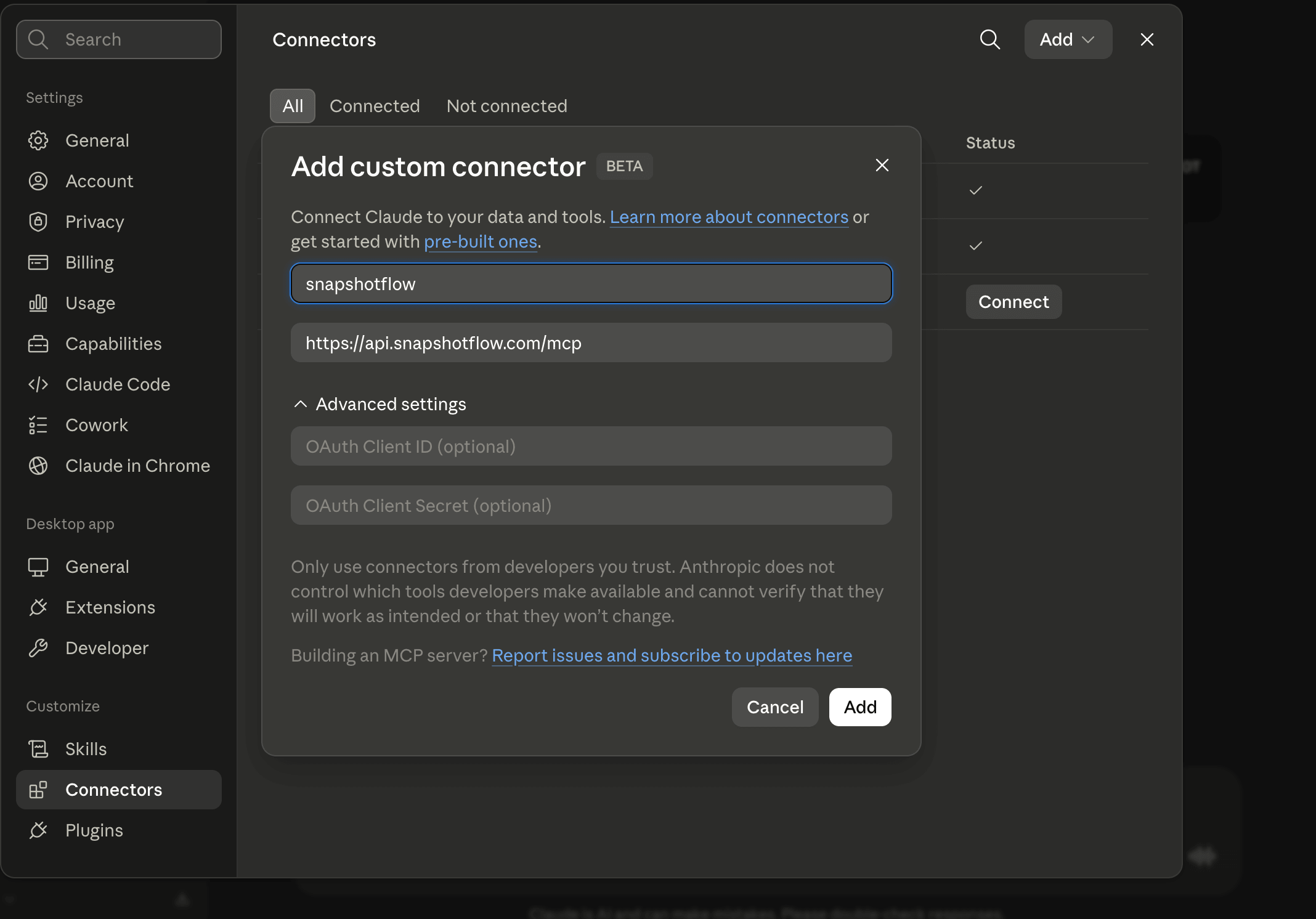
- Open Customize → Connectors.
- Select + Add, then Add custom connector.
- Name it
snapshotflowand pastehttps://api.snapshotflow.com/mcpas the server URL. Select Continue. - Keep the detected authentication settings and the recommended OAuth client, then select Add.
- Complete the SnapshotFlow sign-in in the browser when Claude asks you to authorize the connection.
Team and Enterprise
- An owner opens Organization settings → Connectors, selects Add, chooses Custom → Web, and enters the same name and URL.
- Members open Customize → Connectors, find SnapshotFlow (marked Custom), and select Connect to sign in with their own SnapshotFlow account.
Use it in a chat
Select the + button in the lower left of the message box, open Connectors, and switch SnapshotFlow on for the conversation. The Search and tools menu lets you turn individual tools off.
The connector belongs to your Claude account, so it is available in Claude on the web, in Claude Desktop, and in the mobile apps. Claude calls SnapshotFlow from Anthropic's servers, which means the pages you capture must be publicly reachable.
Working in a terminal? Claude Code has its own setup: see the Claude Code guide.
Prompts to try in Claude
Take a full-page screenshot of https://example.com and describe the main layout issues.Capture these pages and write a short visual consistency report: https://example.com, https://example.com/pricing, https://example.com/docs.Compare https://staging.example.com with https://example.com and show me the visual differences.Read https://example.com/blog as text and summarize the three newest posts.Troubleshooting
- Claude does not use SnapshotFlow. Check that the connector is switched on in this chat under + → Connectors, then name SnapshotFlow in your prompt.
- Authorization failed or expired. Disconnect and connect again from Customize → Connectors.
- Change the URL. Remove the connector and add it again with the new details.
- A page cannot be captured. Pages behind a VPN, on
localhost, or on a private network are not reachable from SnapshotFlow's servers.
What it costs
Your AI client spends its own model tokens, billed by your AI provider. SnapshotFlow only counts screenshots against your account:
| Tool | Counts as |
|---|---|
screenshot | 1 screenshot (repeat requests served from cache are free) |
batch_screenshot | 1 screenshot per captured URL (cache hits are free) |
visual_diff | 2 screenshots |
extract_text | 1 screenshot |
check_job | Free |
New accounts get 300 free screenshots for the lifetime of the account. No credit card required. See pricing for paid plans.
Sources
Steps checked against the official documentation on . Client menus change often; if a label differs, the linked page has the current name.
Other MCP clients
The same server works with any client that supports remote MCP over Streamable HTTP with OAuth. Setup guides:
See SnapshotFlow MCP server for all clients, the tool list, and capture options, or the MCP reference for tool schemas. For more tasks to try, browse the MCP prompt library.